
Checklists can be a very useful way of obtaining data and information currently not held within existing client fields.
They can serve as a "tick-box" exercise to keep track of required documents coming in from a debtor; or as a way of conducting a quick "yes-no" style fact find.
In fact, as checklists are completely bespoke, you can utilise them in any way that will benefit your process.
To use the checklists module, firstly it needs to be activated in any campaign you wish it to be visible in, by clicking on the edit icon within your campaigns.

Enable the checklists module by checking the tick box and press edit campaign to set active within any client record within that campaign.
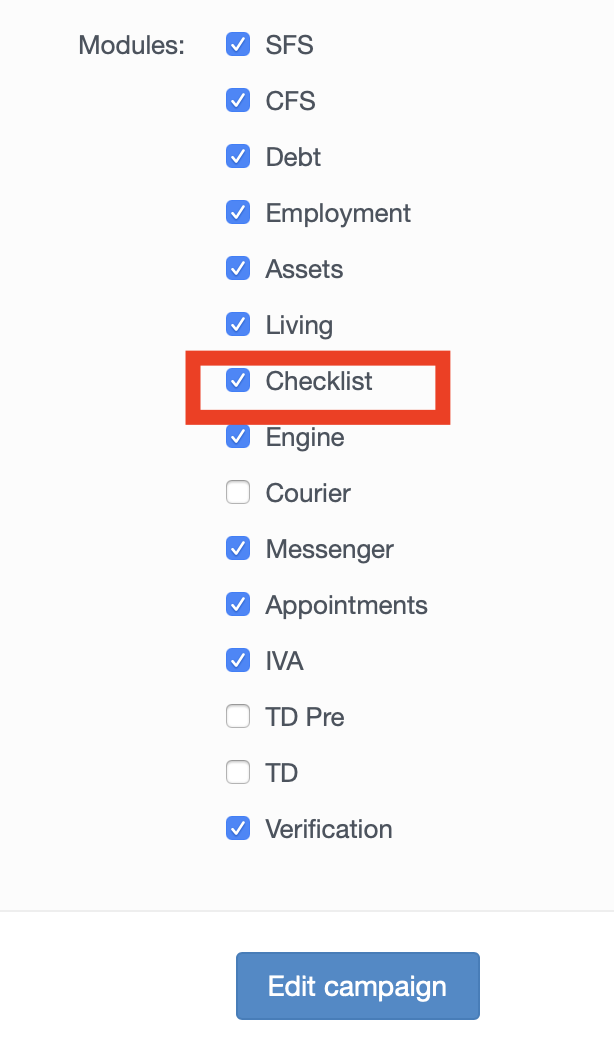
Once the module is activated, you then can create your own checklists to make available to your users within the module.
To create a new checklist you would select "Create Checklist" within the settings menu
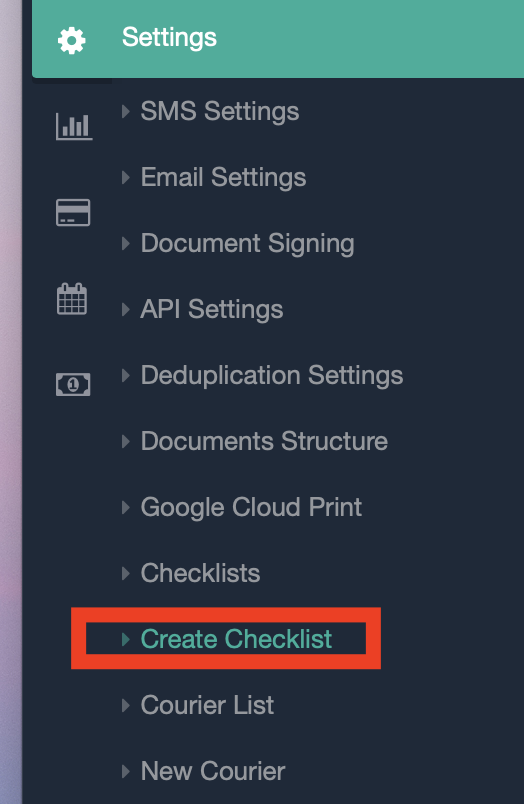
Once it's saved it will then be available both in the Checklists tab (above), and also available to select in a client record.
In this example, we are using a checklist to monitor the return of documents required for a Trust Deed to go ahead.
Give your checklist a name that will be easily recognisable for your users to identify - and click "add checklist" to create.

The next task is to build your checklist using the "build" button

You then have the ability to create as many entries into the checklist as you require, alongside the ability to get documents or files uploaded to correspond with that particular part of the checklist you require, and if this document is necessary to move a case forward, you can prevent any further steps being taken without it by ticking the box "upload required before completion"

Once your checklist has been created, it will be available for your users to select within a client file as and when required as part of your process.
To add a checklist to a client record, click "add checklist" when in the checklist module
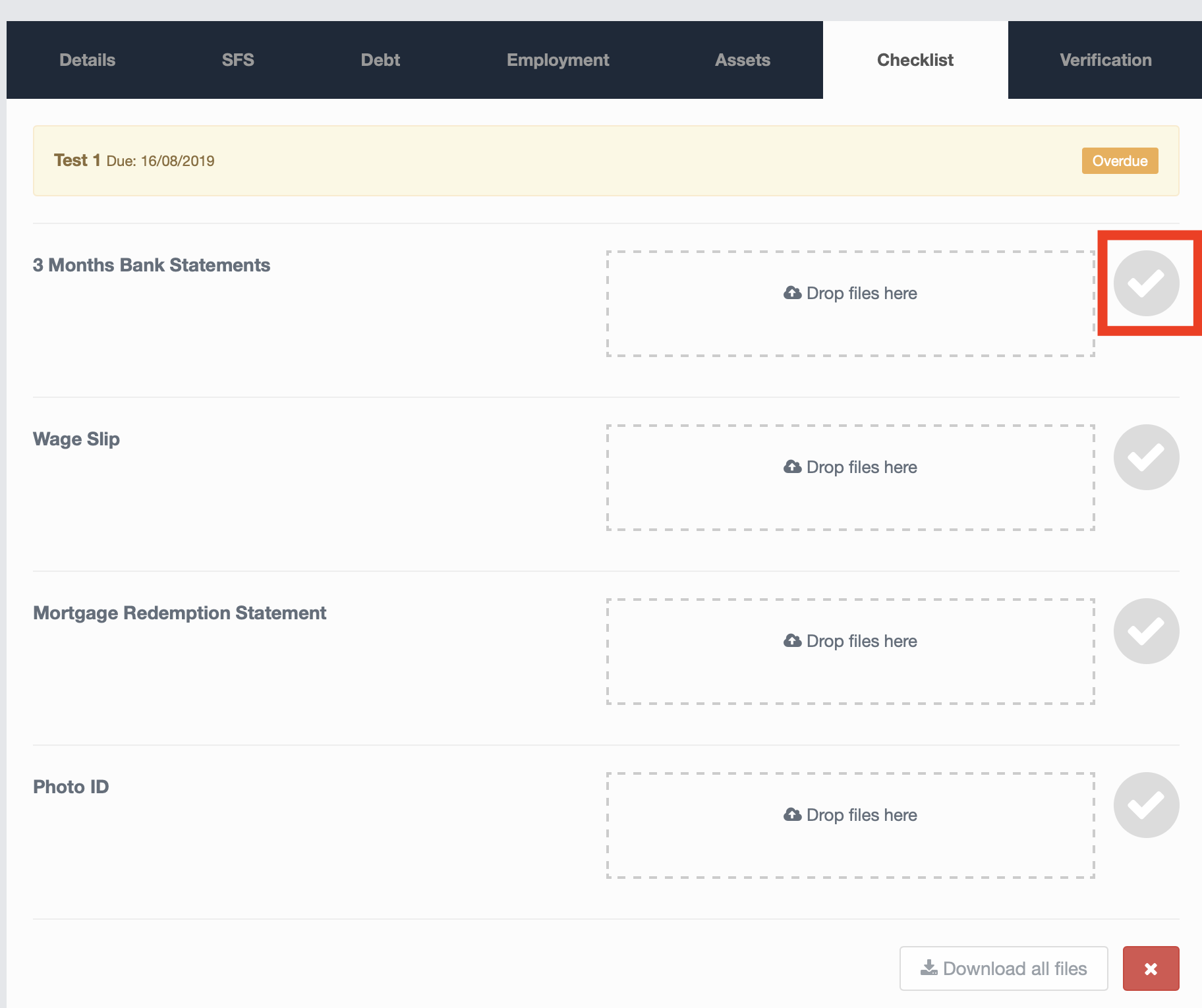
Once the files are uploaded, your user will be then available to tick the check box highlighting this part of the checklist has been completed.
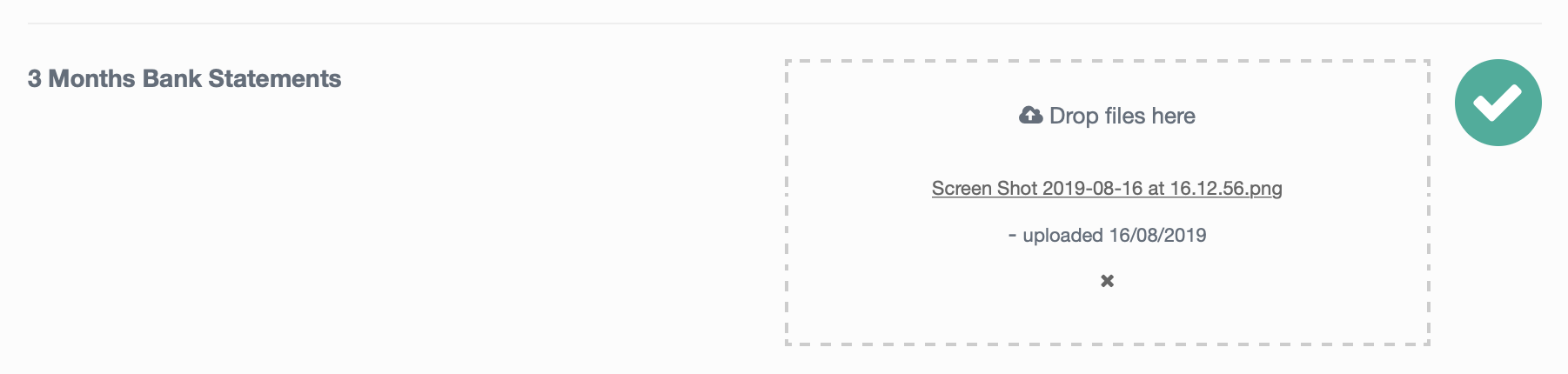
The contents of a checklist can then be pulled through into a document such as a fact find using these dynamic fields:
|
$checklist[0]:items:title$ |
$checklist[0]:items:complete$ |
If you have any questions please email helpdesk@hubsolv.com
Comments
0 comments
Article is closed for comments.