
In this article, we will take you step by step around some of the functionality available within the Trust Deed module.
The Trust Deed module allows you to better track your trust deeds within your business including but not limited to payments, payment schedules, dividends and information/documents regarding the trust deed.
The Trust Deed Module (accessible through the client record) is broken up into tabs which help you to follow the process to start to completion.
Summary
The summary tab contains at-a-glance information relating to the key aspects to the case including signing date, any arrears or vulnerability flags and contribution information.

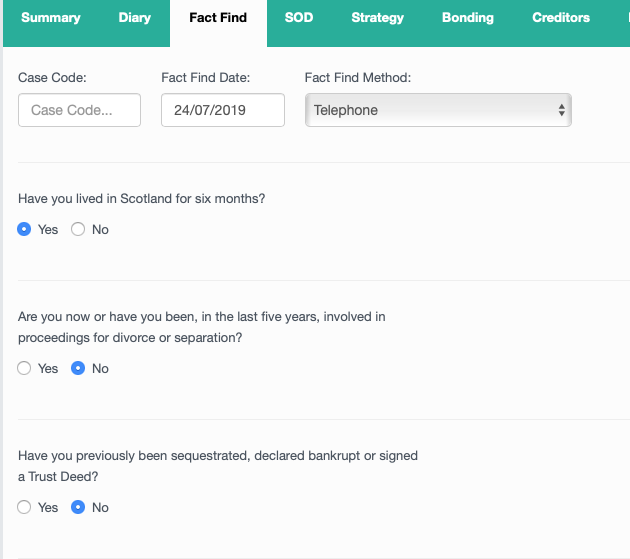
The Fact Find tab can be a step by step walkthrough for your SIP3 call.
The radio buttons can be configured for all questions within your fact find process.
Scheme Of Division (SOD)
The SOD tab gives a breakdown of contributions information, assets, expenses and I&E once a case has completed. This will also give information on the total estimated funds being made available to creditors and the dividend.
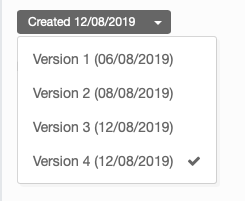
You have the ability to have several SOD's within the case, and these can be filtered using the drop-down arrow.

See the below video for a demonstration of the Scheme Of Division tab.
Strategy
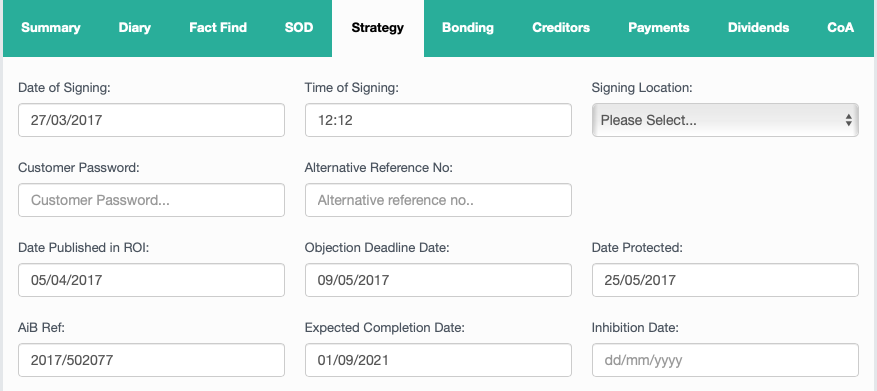
The strategy tab contains useful information on some of the key events in the history of the trust deed - such as signing date, AIB reference number, estimated completion date and payment details. See the video below for a run-through of what this tab includes.
Bonding
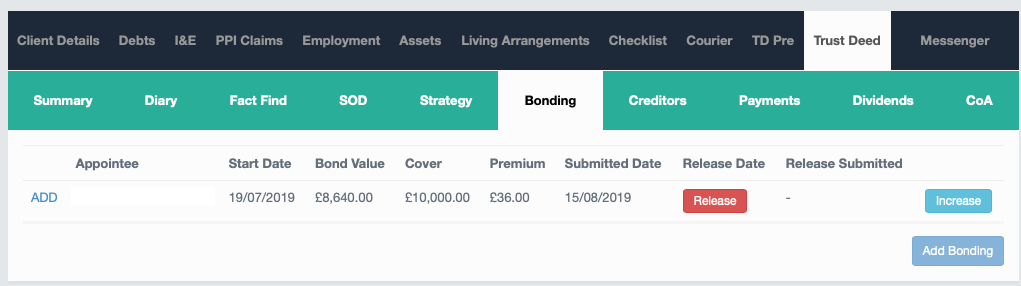
The bonding tab shows information on the bond value of the Trust Deed. It includes the start date of the bond, and the level of cover included.
Creditors
The creditors' tab within the Trust Deed module pulls through data from the debts tab and can be validated via the credit search functionality within HubSolv Messenger.
- Responsible for showing all the creditors within the trust deed
- Statuses for each Creditor, so you could have them awaiting claim or Claim Accepted
- The estimated amount that they are claiming.
- The actual amount that they are claiming.
- Within each creditor, there is also a payment tracker showing how many payments have been sent out.
- History of Debt for each creditor showing any changes made.

Chart of Accounts (COA)
The COA tab is where you will find further financial information relating to the case and is responsible for holding information on assets, voluntary contribution, fees, remuneration and outlays. It will give 2 columns of figures - total and estimated, and this will update in real-time as moneys come in and out the case. These figures can also be exported into documents such as the annual reports (see screenshots below).
This can be filtered to cover a specific time period using the filter at the top
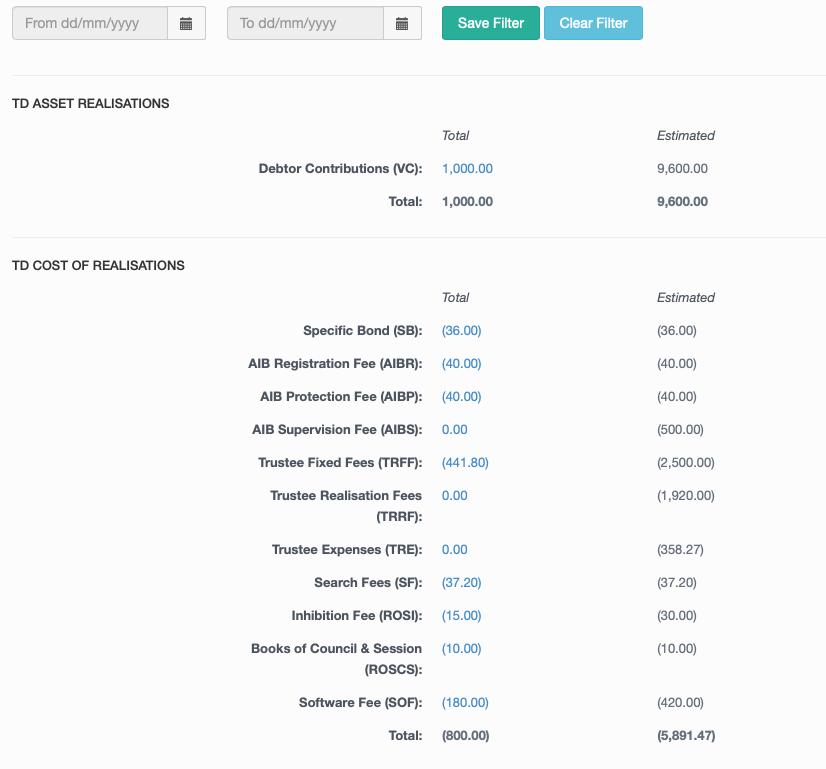
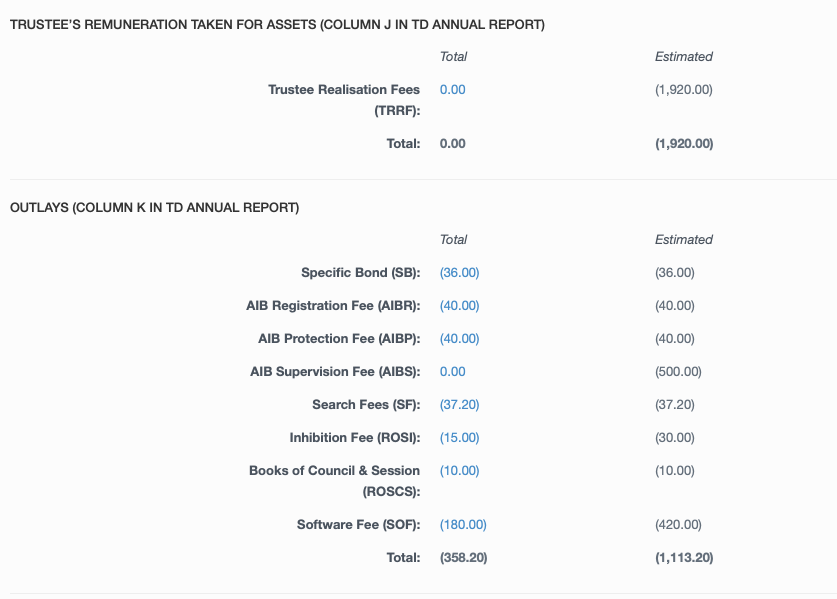
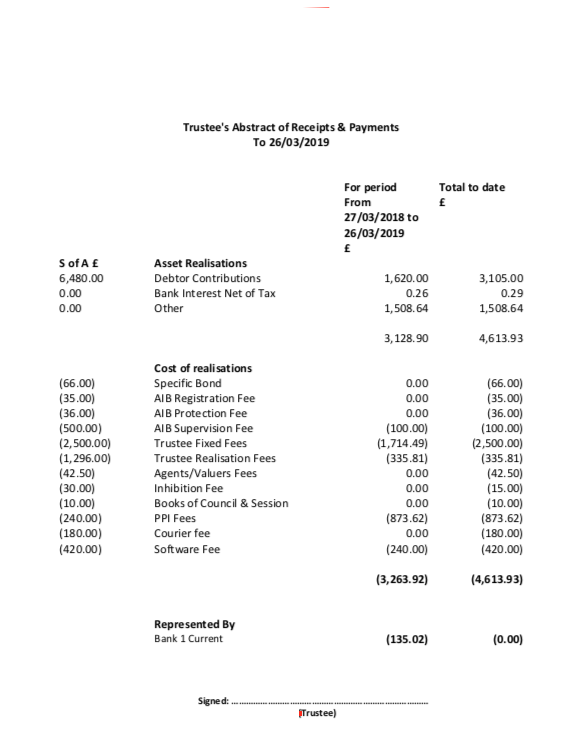
Also within the COA tab is where you would manually remove a disbursement if required, and the video below shows how to do this, along with how to upload a new disbursement into the Payments Suite and for it to pull through into the COA.
Accompanying XL columns 
Payments

- Responsible For how much the client is paying in, the frequency and listing the first payment date.
- Shows the full schedule of payments due in once all details are filled out.
- Shows how much should be going to each creditor.
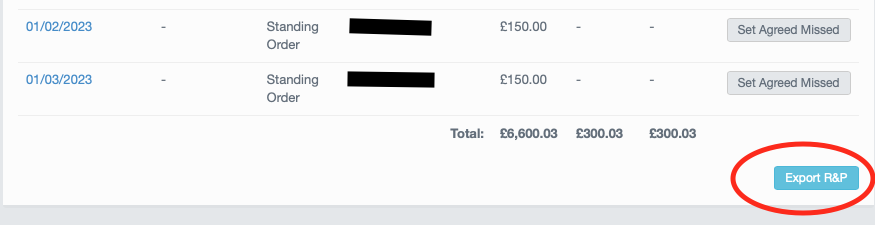
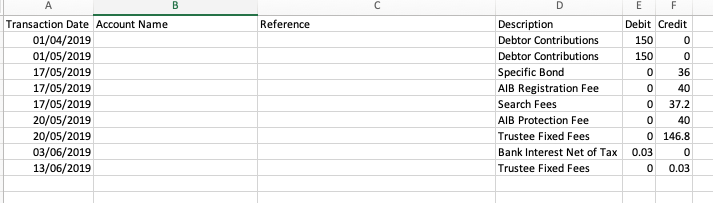
The payments tab also can provide you with an export of the R&P into an excel format which can be useful for analysis of money in and out of the case. This can be found at the bottom of the payment schedule
Please click here for more information and demonstration videos on our Payments functionality.
For more assistance please contact helpdesk@hubsolv.com
Comments
0 comments
Article is closed for comments.