
A useful feature within the reports section of HubSolv is to send saved reports via email to anyone you wish. These can also be scheduled to be sent out at any given time as well as being able to add more email addresses if required.
To schedule a report to send via email, go to your saved reports and select Report Settings.
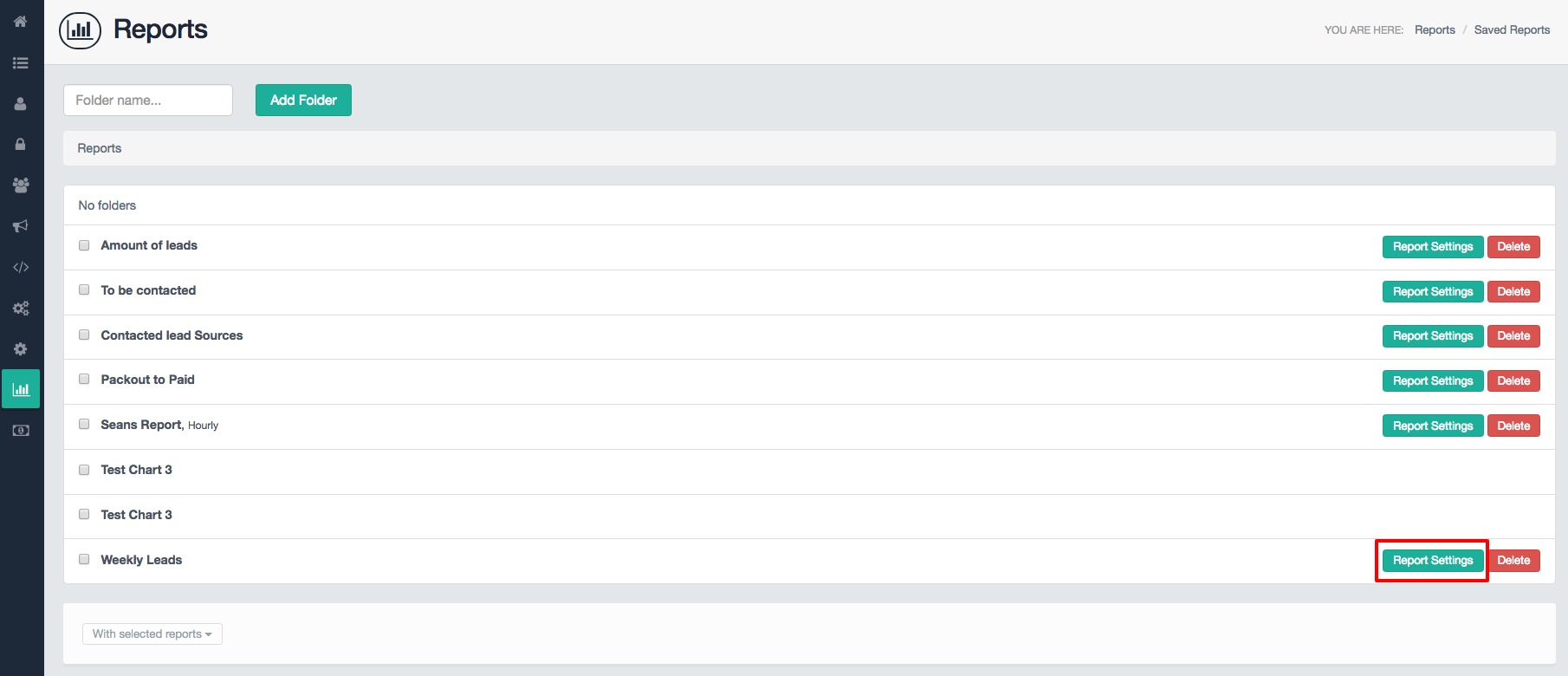
From here you will be taken to the chosen report. Scroll down to the report and select Saved Report.
Use the Schedule dropdown box to switch from 'no' to 'yes' which will activate the schedule day and schedule time boxes.
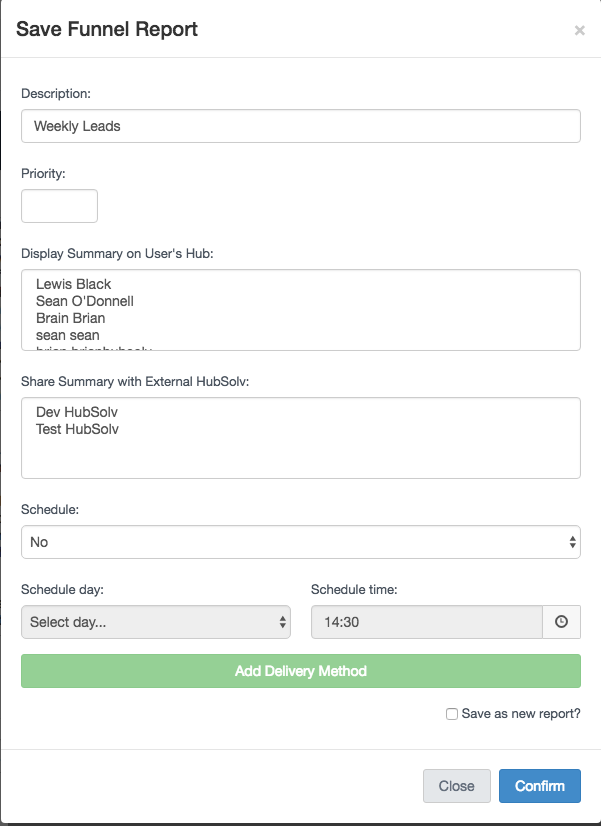
This action will allow you to input further information. Select the relevant information you wish to include in the report and type in what you want the file to be called that will be sent via email.
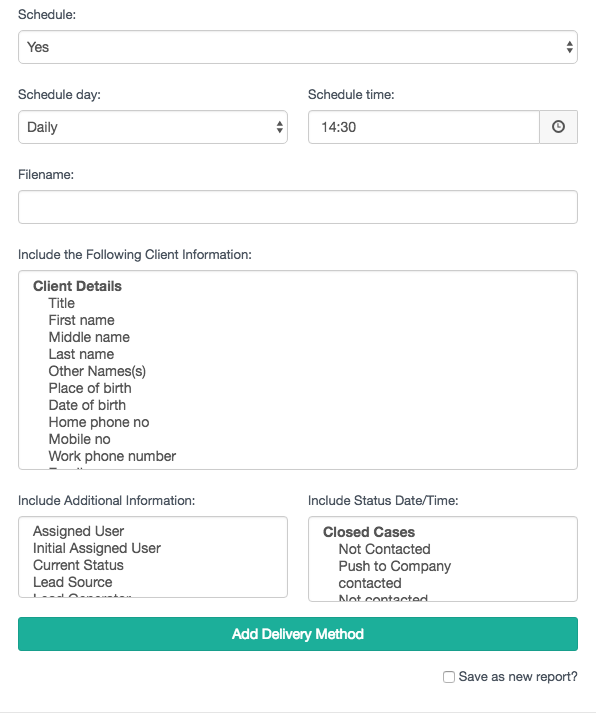
Input the desired information and then select 'Add Delivery Method'. Select the delivery method 'email' and input the address(es) you want to send the report to. To send to multiple email address, you can separate using a comma.
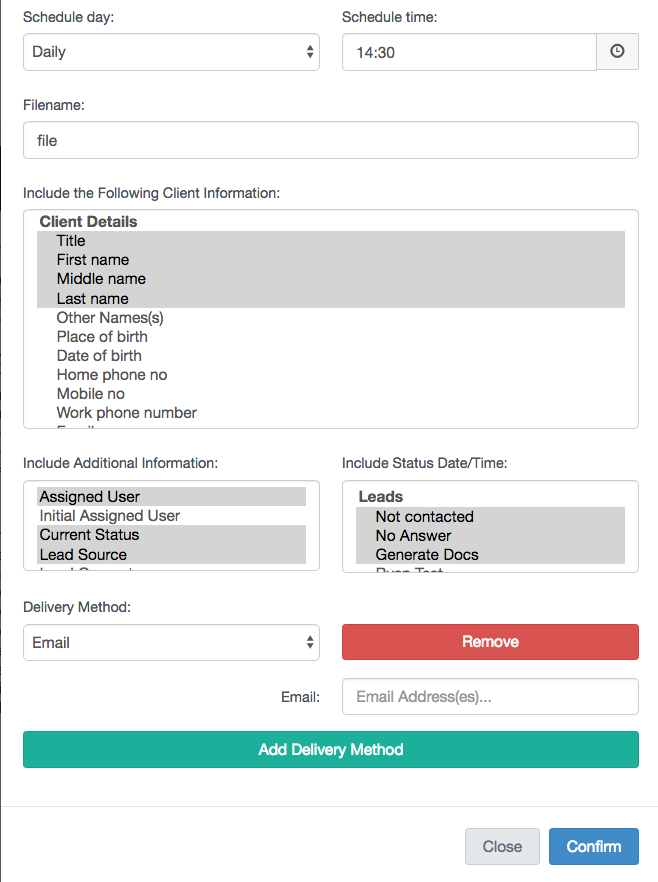
Once you have all fields entered, click confirm and the report will generate and send on the day and time selected.
For any further help in generating reports, contact helpdesk@hubsolv.com
Comments
0 comments
Article is closed for comments.