
HubSolv's Classic Report Builder is a great tool to help you view and compare the data stored within your HubSolv portal.
Running a Simple Report
To run a report the only essential criteria is that you select the fields you would like to be displayed from the list on the right hand side (shown below).
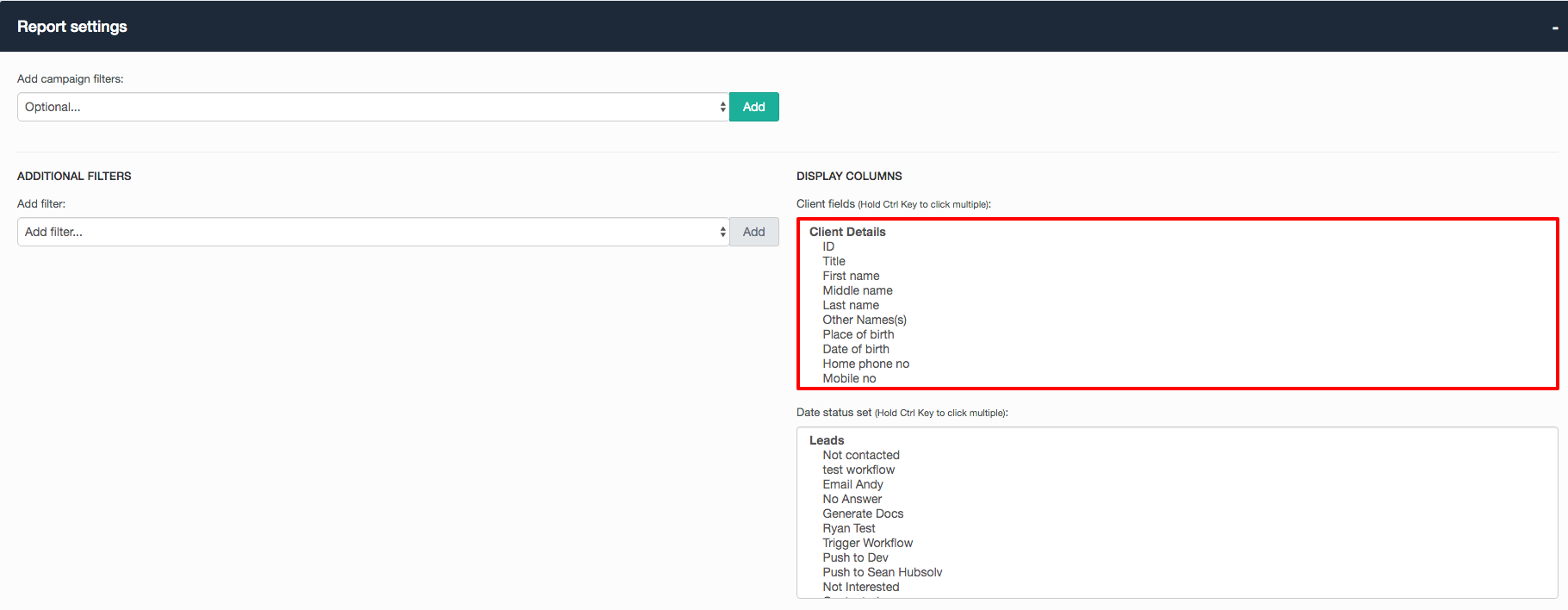
You can select as many of these fields as you need by holding ctrl + clicking on each one individually (or shift if you want to select loads next to one another).
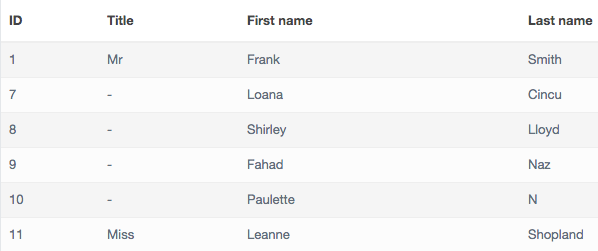
Once you have selected the fields you desire. Click on the Run Report  button at the bottom of the page and you will be presented with a report showing the information from the selected fields for all of your leads within HubSolv (Please see below).
Filters
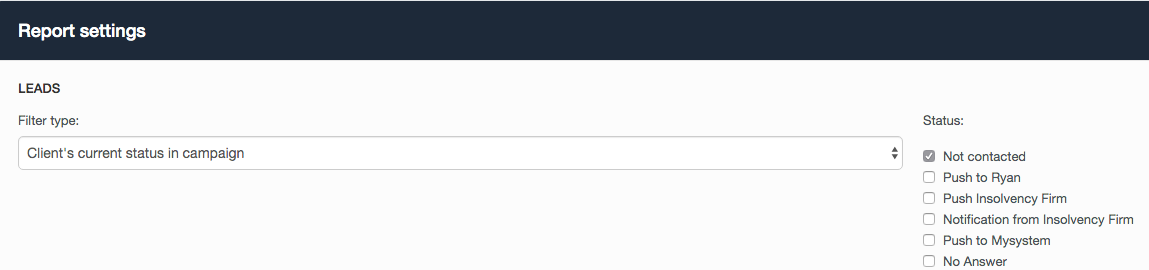
Filters are a way for you to fine tune the data that you see in your reports. To use this simply click on the drop down menu at the top of the page, select the campaign you would like to display from and click add to get started.

From here you will be presented with a screen where you can take further control of your report. Please see below a very basic filter designed to show you all of the users in the Leads campaign that currently have their status set to Not Contacted.
Exporting to Spreadsheet
HubSolv allows you to export your reports to a CSV file so that you can view it in your preferred spreadsheet application.
Here is an example of how to export your report to CSV.
Once you have run your report you will need to click on the +(plus sign) at the top right hand corner of the report (Shown Below).
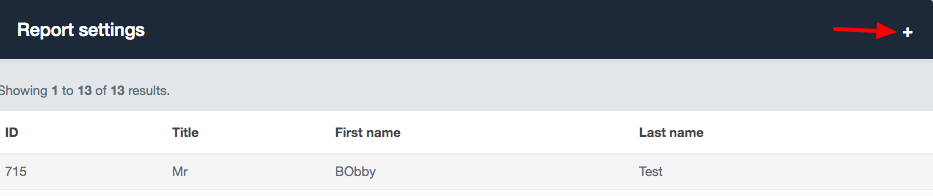
This will drop down a menu for you to make changes to your report. To export click on the Export to CSV  button at the bottom.
You will now be presented with a pop-up window where you will be asked to insert your desired filename.
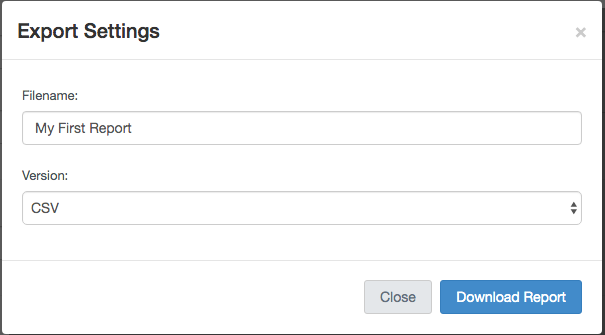
Simply click on the Download Report button to download a CSV version of your report.
Saving, Scheduling and Emailing
You can save your reports by simply selecting the Save / Schedule Report  button. This will present you with a new pop-up window (shown below).
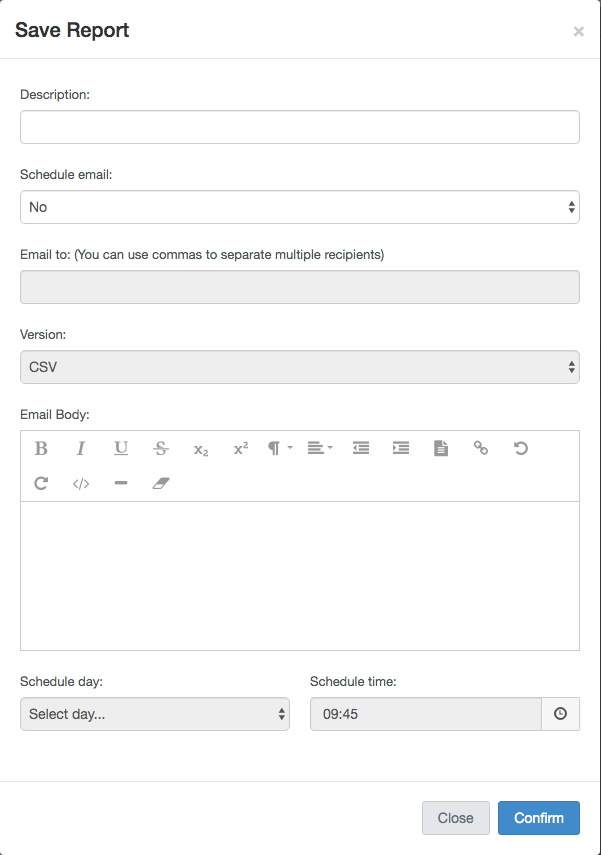
To save a report simply enter a description (this will act as a title for your report) and hit confirm. You can now access your report from the 'Saved Reports' section of HubSolv.
You also have the option within here to email this report to anyone you'd like by selecting the 'Schedule Email' dropdown and changing it to Yes.
From here you can email multiple recipients and even schedule in a single or recurring time for this report to be run and sent.
Note: HubSolv now features the MI Report Builder that contains a more complete set of tools to help you run your reports - read here for how to use the MI reporting module.
Comments
0 comments
Article is closed for comments.