
One of our most popular features is the ability to run a Credit Search.
With our instant messaging portal, HubSolv Messenger, users are able to get Credit Reports to assess individuals' affordability and credit commitments. The credit data provided is automatically integrated with templates in HubSolv, making it easy for advisors to manage information on every case.
Please note: We have rebranded our portal, previously known as Ibby, under the new name HubSolv Messenger. You may find the term Ibby in some of our media. Please bear with us while we work to update the product's name and visuals throughout.
This guide will teach you how to run a Credit Search on HubSolv Messenger.
HubSolv Messenger is a web-based application which runs in real time in the browser, meaning there's no need for downloads or installations.
You will need a few details to get started:
- Email address (required for account setup)
- Mobile Phone Number (required in the event of requesting a password reset)
- 3-Year address history (required for Credit Searches Only)
Please note, you'll need a configuration file with the Credit search item enabled inside it. If you don't know how to create one or need any assistance, please contact us.
Starting the Conversation
Once you have all your client information entered and your configuration ready to go, click on the Messenger tab.
Select the corresponding Configuration created from the dropdown menu, and click the Load Configuration button.
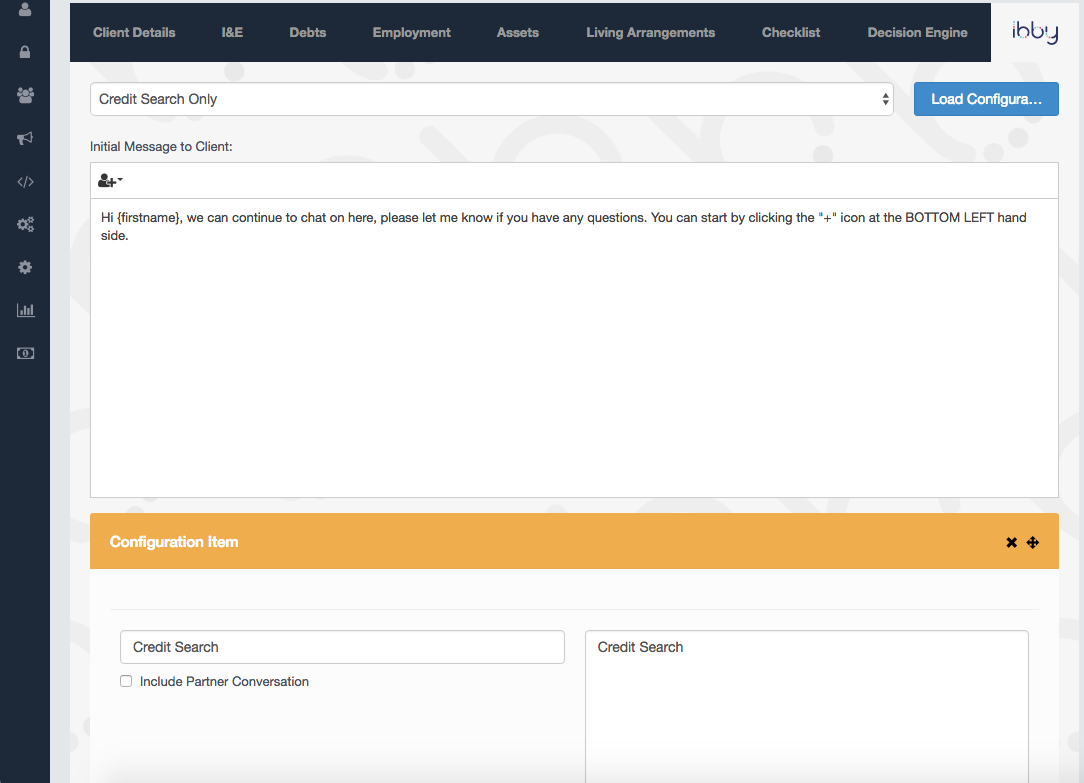
Scroll down to the bottom and click on Start Chat, this will trigger a message with a link to the user via SMS/Email.
User's Point of View
When you start the conversation, the user will receive a message with a link, which will direct them to HubSolv Messenger. Here, the user will be able to quickly create a a password and account.
Performing the Credit Search
Once this step is complete, the user will be taken to a chat window to talk with you. When performing a Credit Search, the user will be asked to consent to the search. This window can also be accessed by clicking on the blue + icon in the bottom left, and then selecting Credit Search.
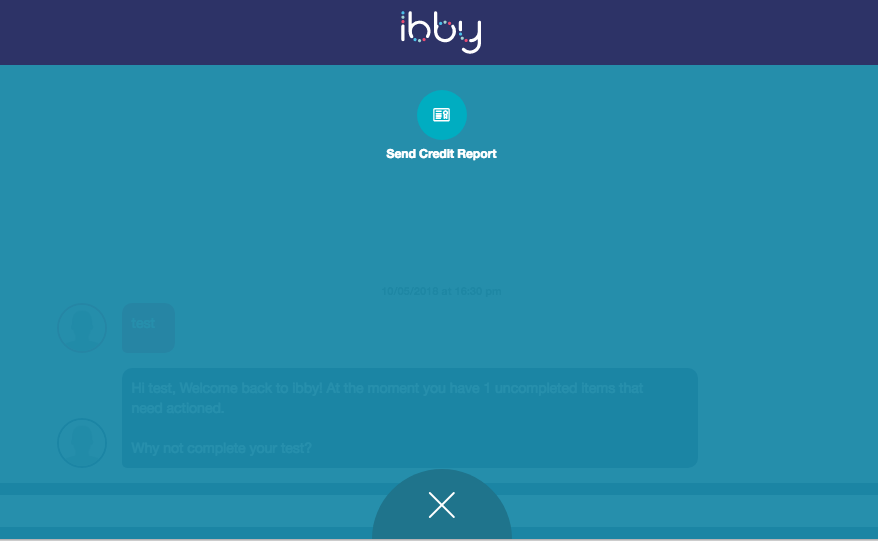
Once this process is complete and the search is done, the system will populate the information gathered within the relevant tab in HubSolv, and also provide you with a PDF file in case you need to share it with anyone outside HubSolv.
If you need any assistance with HubSolv Messenger, please contact us via email on helpdesk@hubsolv.com
Comments
0 comments
Please sign in to leave a comment.