
HubSolv Messenger's Credit Search and Bank Connect features run through a credit system. Users are able to top up credits when they are running low - within the Settings menu in HubSolv.
Please note: We have rebranded our portal, previously known as Ibby, under the new name HubSolv Messenger. You may find the term Ibby in some of our media. Please bear with us while we work to update the product's name and visuals throughout.
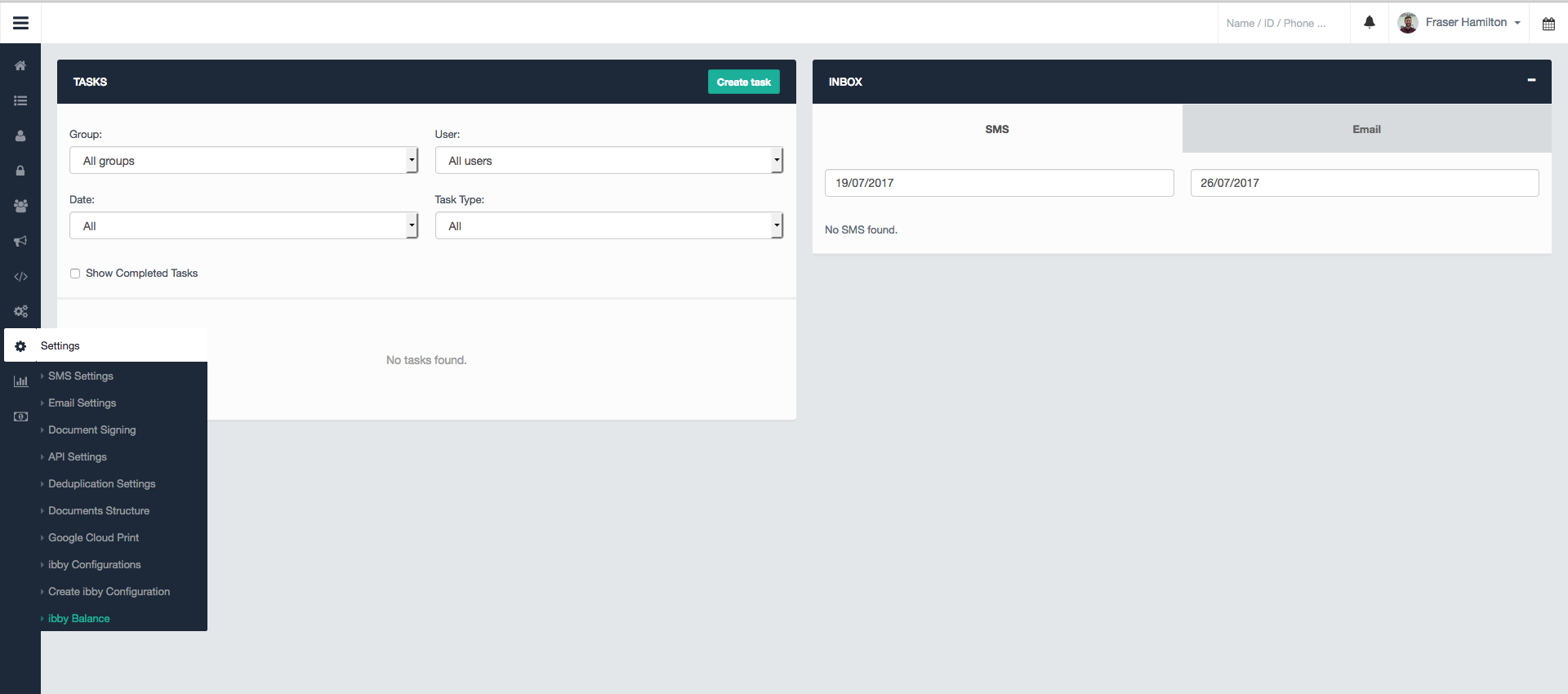
Click on Balance and you will be taken to a screen detailing current credits for Bank Connect and Credit Search (partial and full searches).
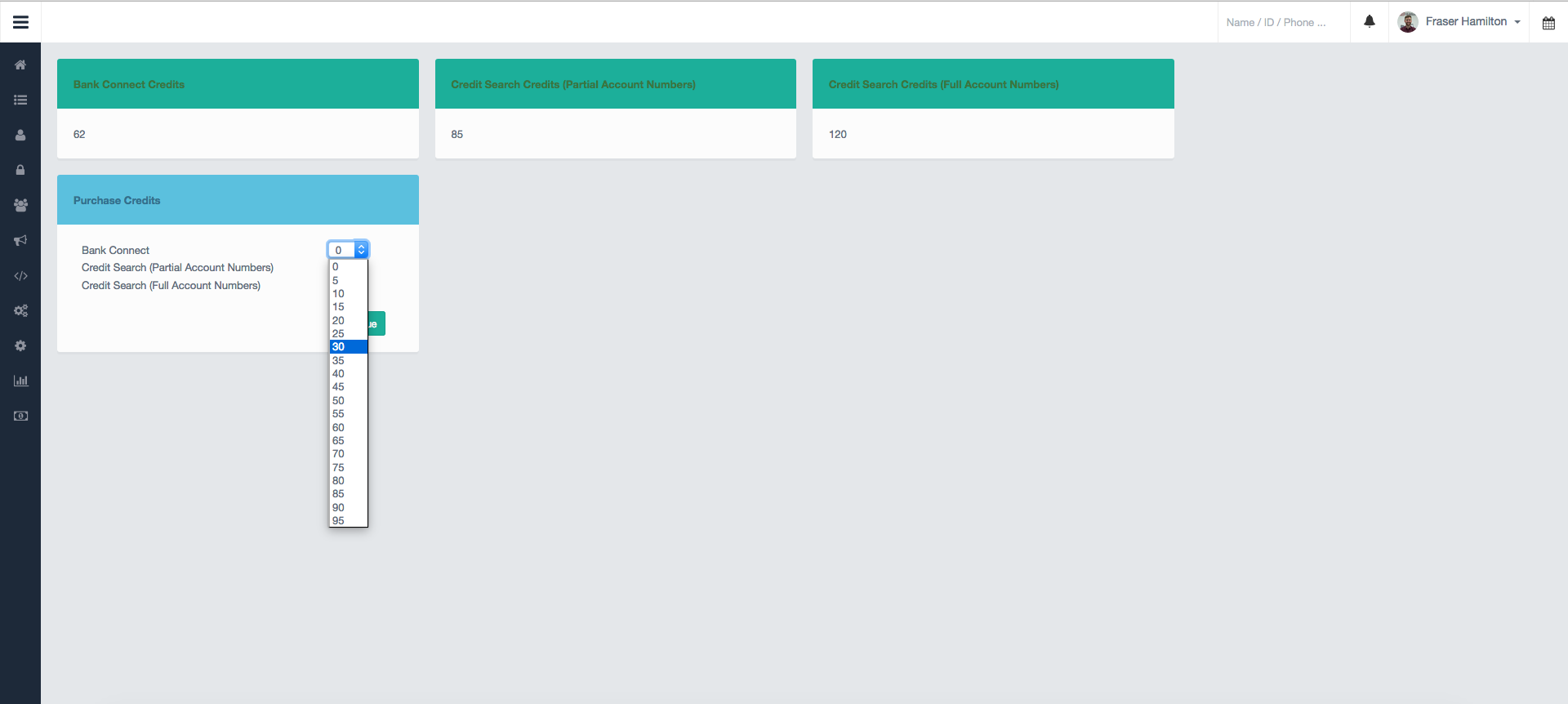
In order to top up, select the amount of credits you'd like to top up by under Purchase Credits.
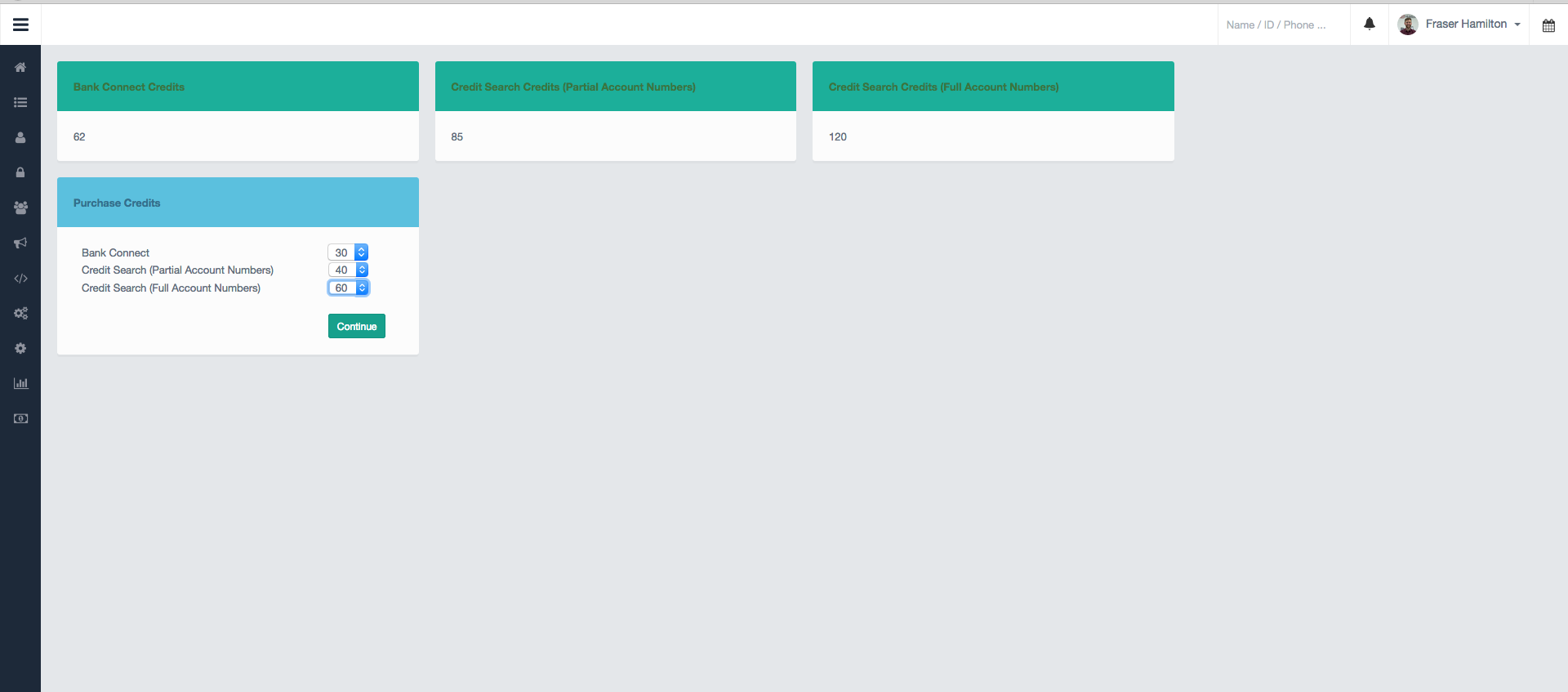
Click the Continue button; this will proceed to give you a summary of your order.
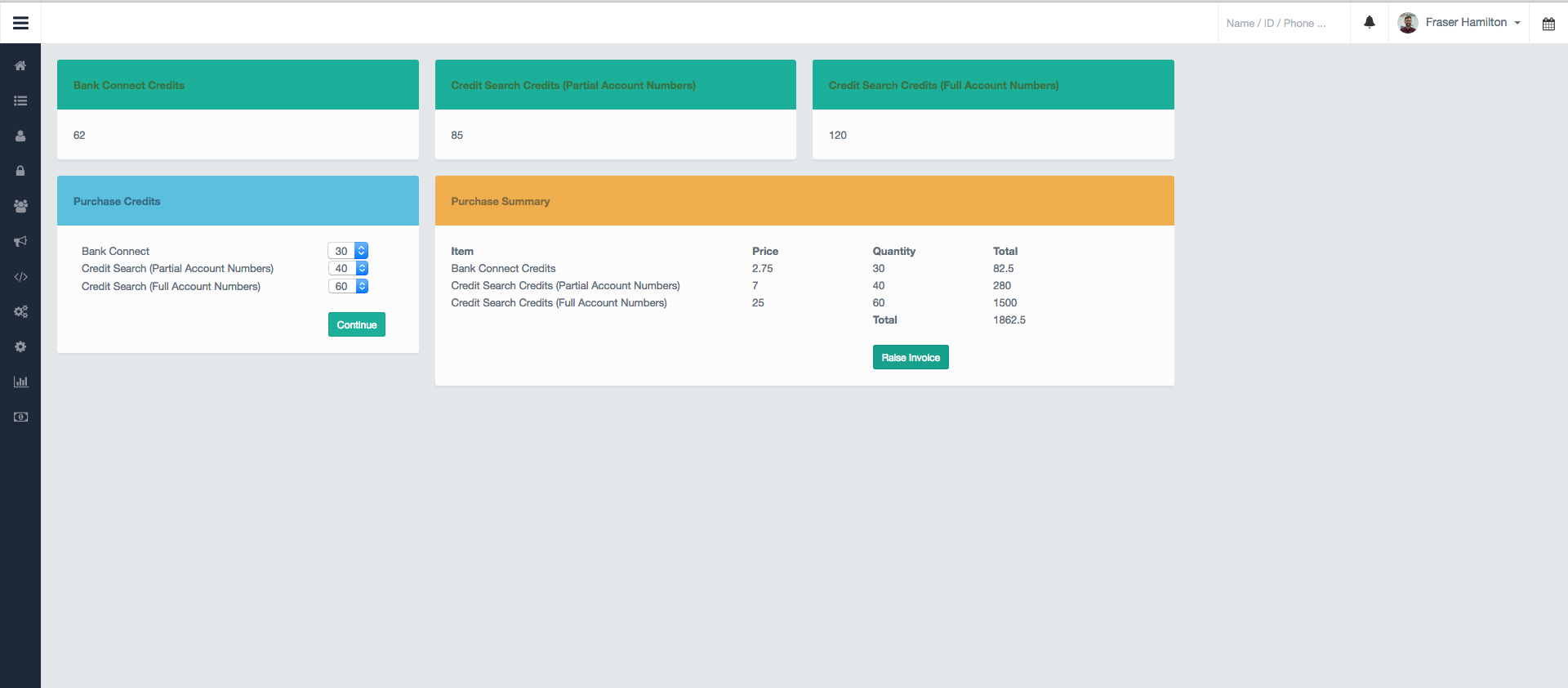
A section will then appear at the bottom, showing unpaid invoices.
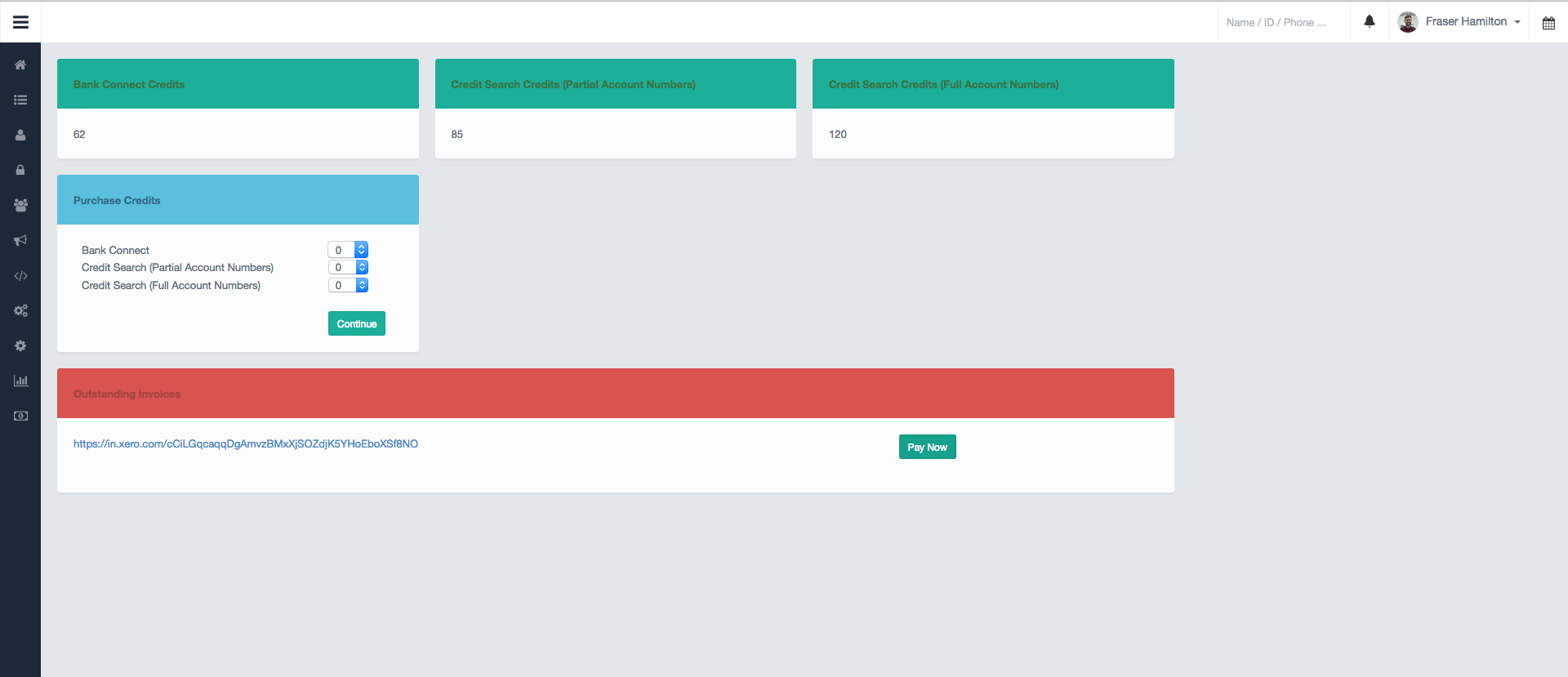
Click on the link shown to see your invoice and pay it.
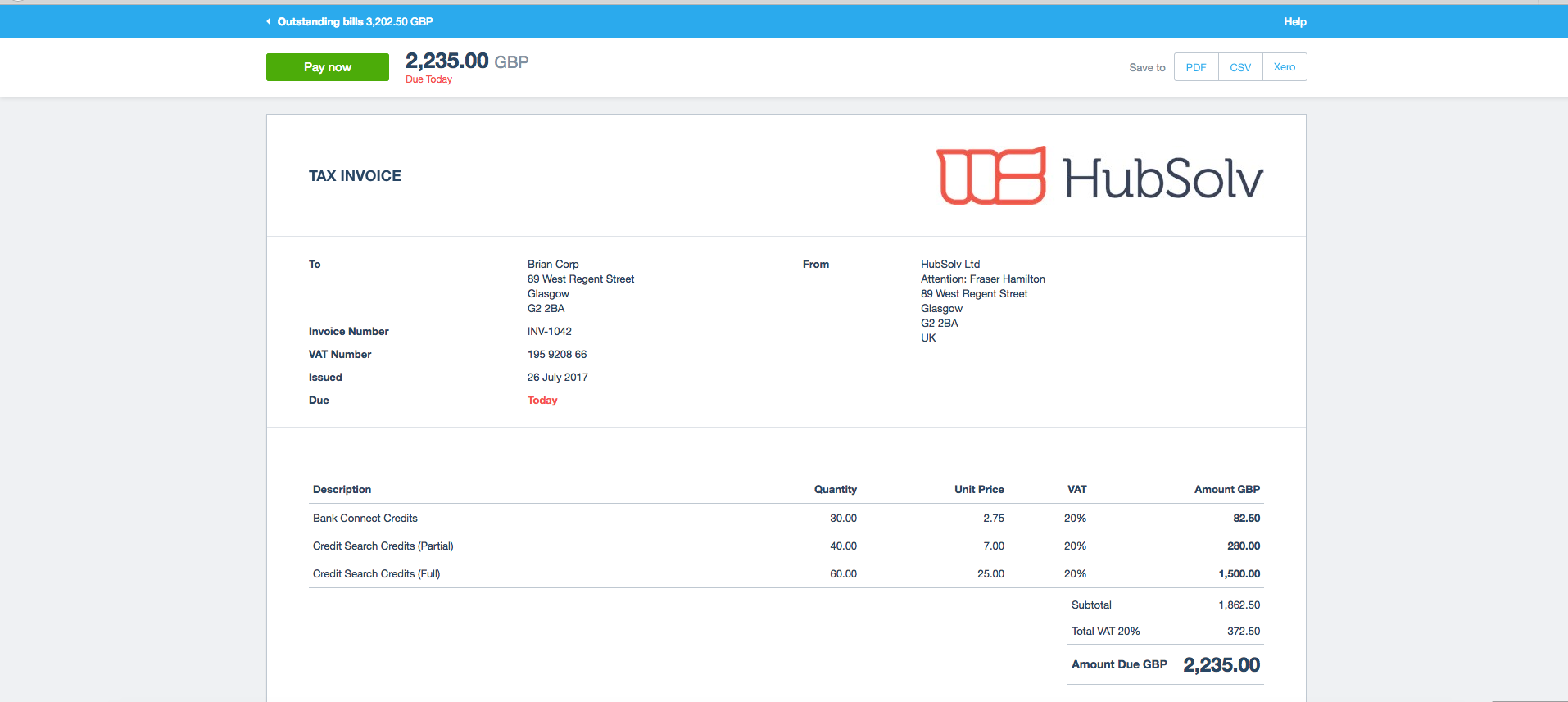
Once paid, the unpaid invoices will be removed from the Balance screen, and you should see your credits updated (it can take a little while for payment to be confirmed).
If you need any help or experience any inconvenience with payments, please feel free to contact us at helpdesk@hubsolv.com
Comments
0 comments
Please sign in to leave a comment.