
HubSolv has the functionality to integrate with Google Cloud Print, which allows users to print documents with an authorized Google account, over the web from anywhere.
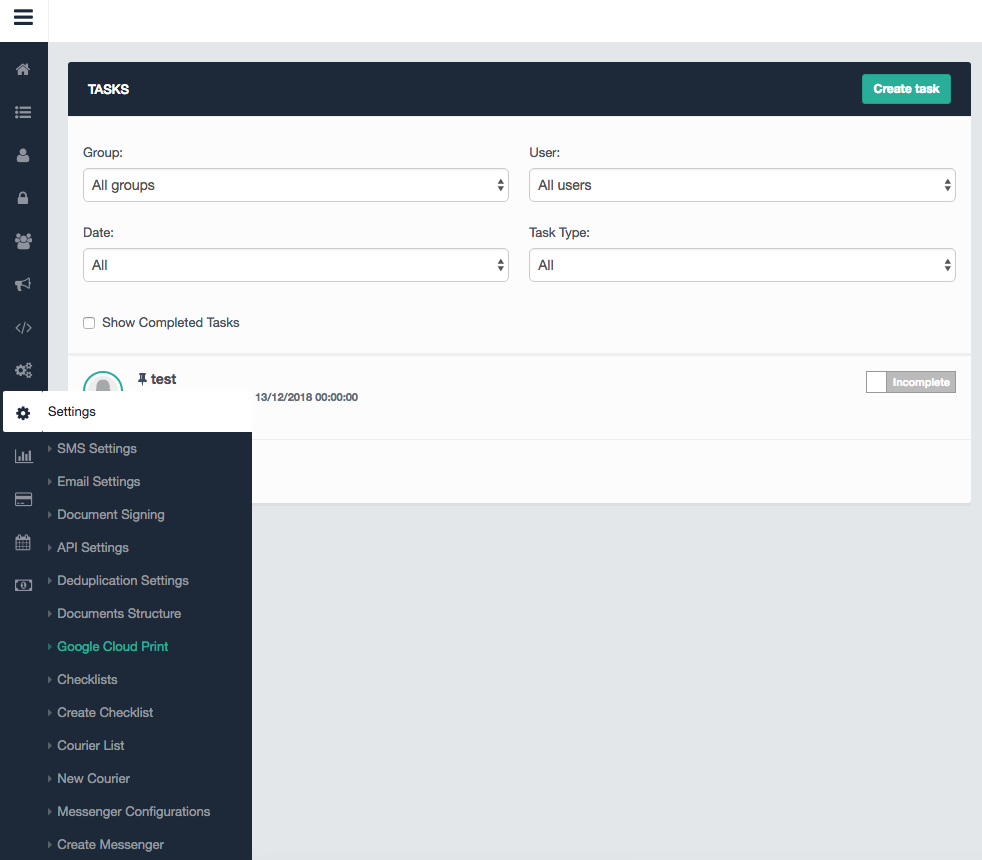
To activate this feature, go into Settings on the left side menu, and click on Google Cloud Print.
In the next screen, you will see a red warning box if no account has been linked, as shown below.
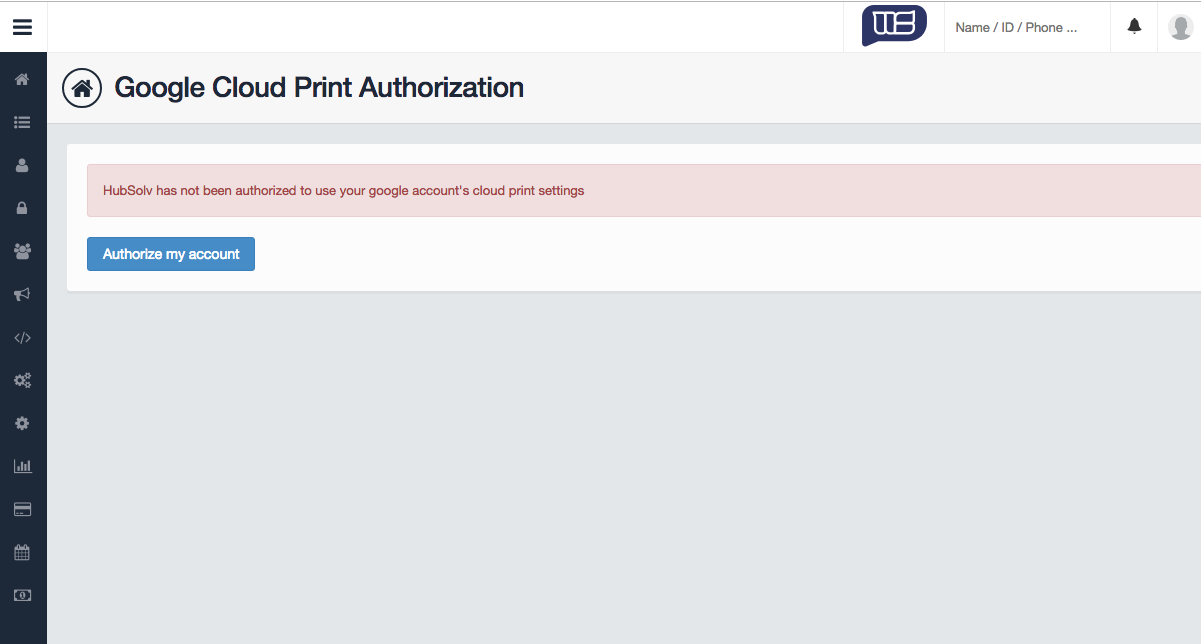
Click on the blue 'Authorize my account' button to proceed to the Google login page to confirm this action.
Printing Via Client Document Folders
Once you login successfully with Google, your account will be authorized and you will be able to use the printers set within your Google account.
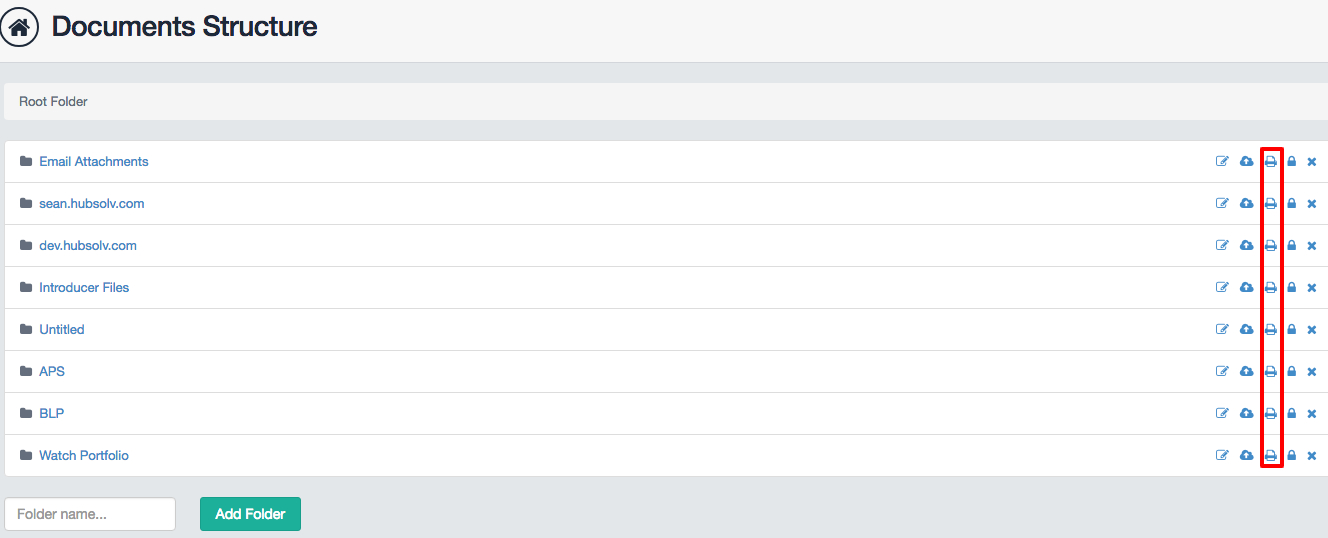
Google Cloud Print allows documents to print to your chosen printer via HubSolv, through activating the print functionality on client document folders. Go to Settings>Document Structure and select the folder you want to set up with Google Cloud Print, using the printer icon.
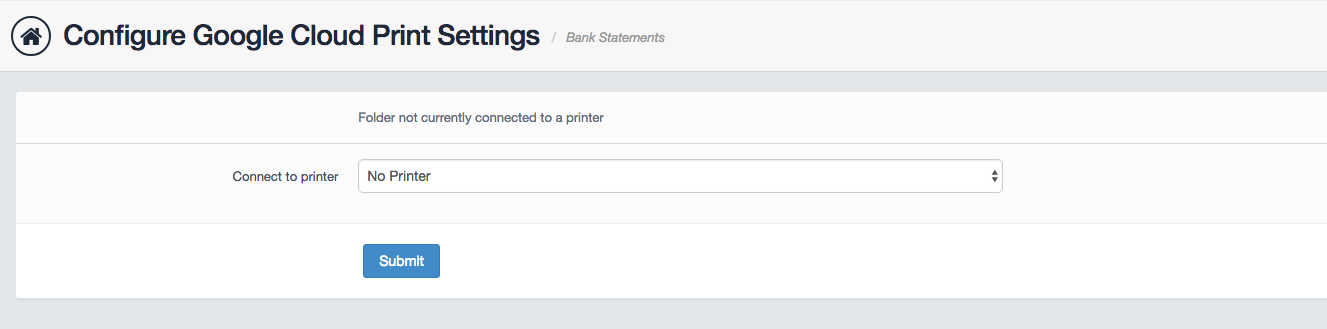
Once you select the folder, you can then select the printer that has been set up as above.
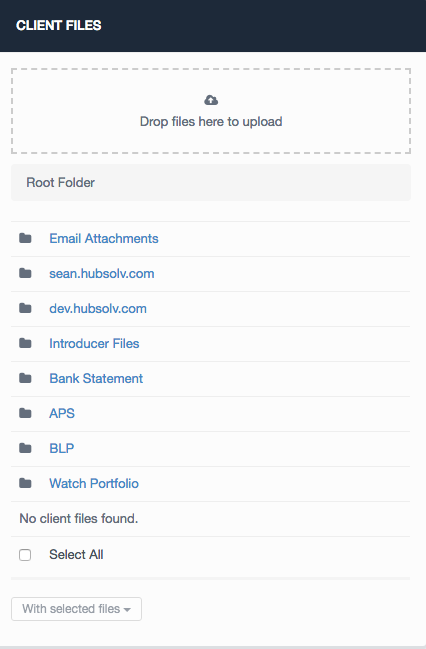
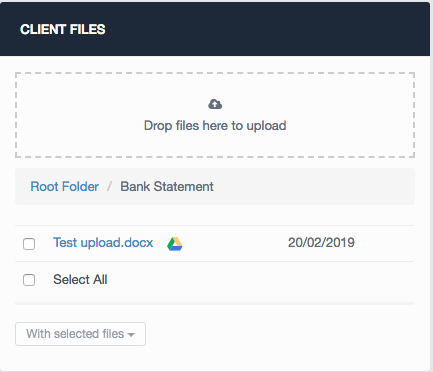
When it comes to the point where a document needs to be printed, go to the client record and drop the document into the folder. Any document you drop into the folder will then be printed by the integrated printer.
If you need any help, feel free to reach out to us at helpdesk@hubsolv.com and we'll be happy to help with any questions.
Comments
0 comments
Please sign in to leave a comment.