
Accessing Documents Structure
Within HubSolv you have the ability to create a document structure to help organise any files that you hold within a client record.
To create this go to the settings tab on the left-hand side and select Document Structure.
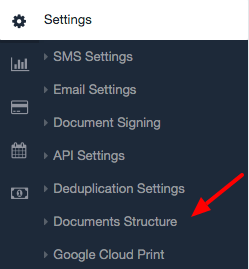
Here you will be presented with a screen that lists all your current folders.
Create Folders
To create a new folder simply type the name you would like in the box at the bottom of the page and click 'Add Folder'.

This will automatically add this new folder to the document structure above.
Of course this doesn't stop there. When you enter a folder you can create subfolders easily within there using the same method.
Edit Folders
Editing folders within HubSolv couldn't be simpler. To do this just click on the edit button on the right hand side of the folder you would like to change and this will allow you to alter the file name.

FTP/SFTP File Upload
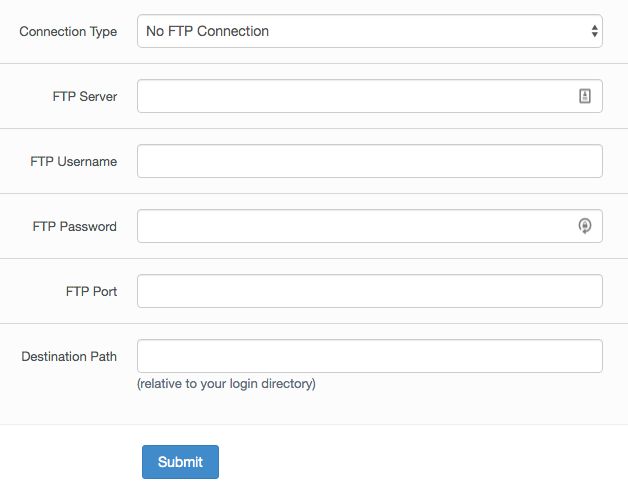
HubSolv allows you to add files to your folders via FTP or SFTP. To do so, click on the cloud icon to the right hand side of the desired folder.

Here you will be presented with a page to enter your FTP information.
Cloud Printing
You are able to cloud print using the printer icon to the right hand side of the desired folder.

Here you may link your google account to HubSolv to access to your cloud printers.
Permissions
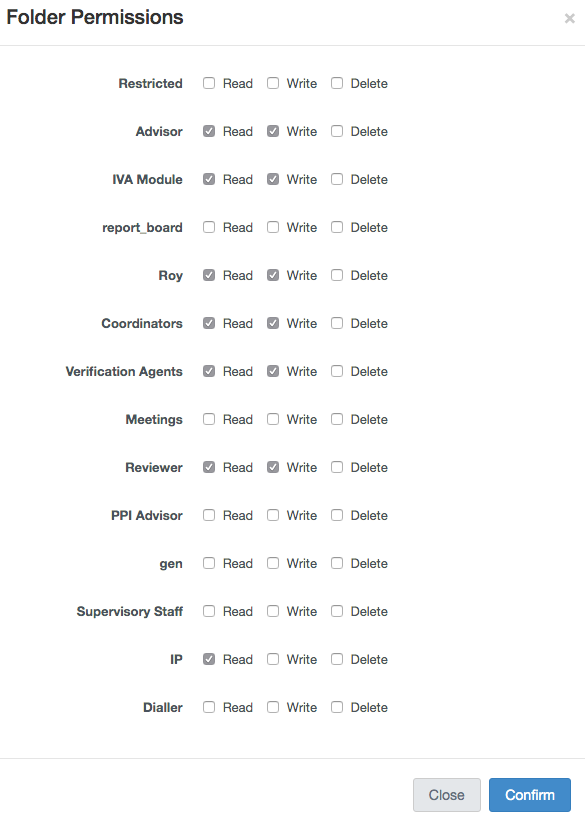
Client data is private and we understand the importance of only allowing access to sensitive information to those who require it. This is why HubSolv will allow you to fine tune the permissions for each folder to keep data safe from unwanted eyes.
To do this click on the padlock symbol to the right of the folder.

Within here you will be presented with a screen that lists each of the roles set up within your HubSolv and will allow you to fine-tune their permissions, for examples please see below.
Deleting Folders
When you no longer need a folder these can be easily deleted using the X button to the right hand of the folder you are looking to get rid of.

Once you have clicked on this you must now select a new destination for all of the client files within that folder. This is to ensure that you don't lose any client information when restructuring your documents.
To select a destination just navigate to the desired folder and then click on 'Continue'. This will complete the deletion and move the files to their new destination.
Viewing Client Documents
Once you are done editing your document structure you can access your client's files from within their client record by scrolling down and looking to the box on the right-hand side. Please see below.

Comments
0 comments
Please sign in to leave a comment.