
A Client Record can be broken up into sections relating to key parts to your process and in turn, assist you in completing a case through HubSolv.
- Associated Campaigns
- Notes
- Client History
- Client Files
Associated Campaigns
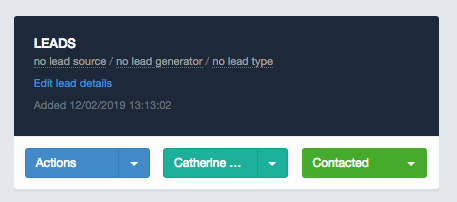
Here users can update the client's position related to whichever campaign they are associated too. If applicable, the lead source, generator and type can be updated to provide a further breakdown into where the lead has come from. Click on 'Edit lead details' to update these fields. For more information on lead source, generator and type click here.
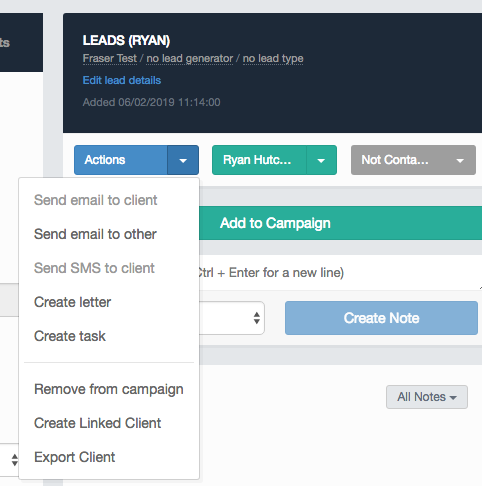
By clicking on actions, the user will be able to contact the client in various ways as well as being able to remove them from the campaign and export the client to csv. Users can also create a 'linked client' based on any partner details and associate them to any campaign which will, in turn, create a separate record for the partner. This is especially useful if a partner wishes to manage their own debt separately from the other client.
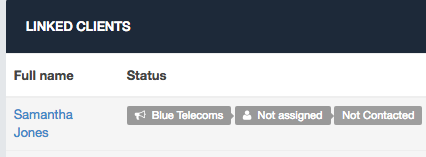
Linked Clients to a record will appear at the bottom of the page.
You can also associate the client to another user by clicking on their name within the campaign box. If a client is associated to more than one campaign, a different user can be selected for the client within those campaigns. This can be useful if a case/client needs to be handed over to another user further into the process for example at the point of agreeing to an IVA.
Clients can be associated with multiple campaigns by clicking the 'add to campaigns' button and selecting the desired campaign along with the current status. All current campaigns will be displayed on the client record.
Notes
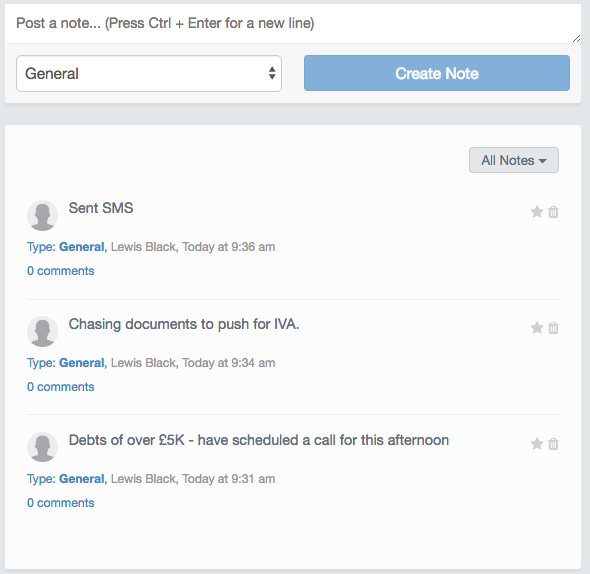
The notes section of a client record allows you to keep track of any internal notes that can be viewed by anyone else who goes onto that record. The dropdown below the text box allows the user to categorise the type of note you are entering. To request new note types contact helpdesk@hubsolv.com
Once the note has been created, you can view all notes against the client record below and filter by note types.
You can also use the 'Bin' icon to permanently delete notes. The 'Star' icon will pin the note to the top of this section and is especially useful if a specific note contains key information.
Editing notes can be managed by highlighting over the existing text and typing. This will automatically overwrite the existing note.
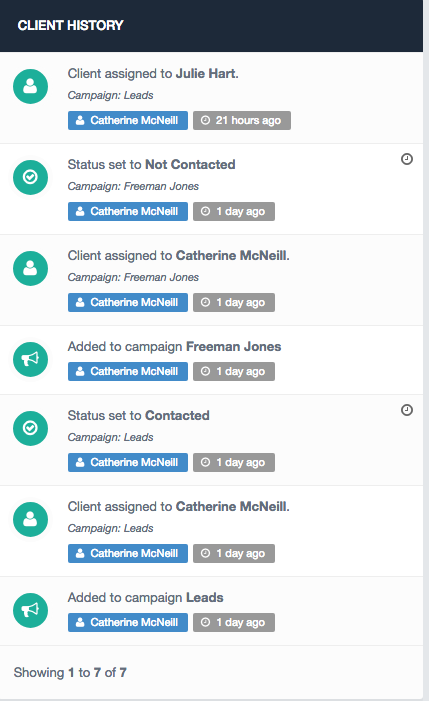
Client History
Users will be able to review all actions against a client in the client history column. This is useful for those who have multiple users involved with the same client and you can be kept up to date at a glance.
Client Files
This section is dedicated to where users can upload documents provided by the client and organise them by folders arranged via the documents structure menu item under settings.
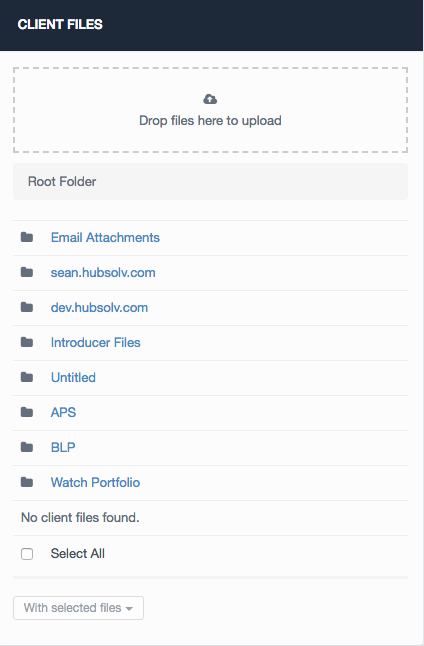
Users can click on the folder they wish to upload a file too. They can then drag and drop files or click on the upload box to upload manually.
Files from introducers who have 'pushed' cases to your HubSolv will also show in this section, in the folder that corresponds with their HubSolv name. Click here for more information on pushing cases to another HubSolv.
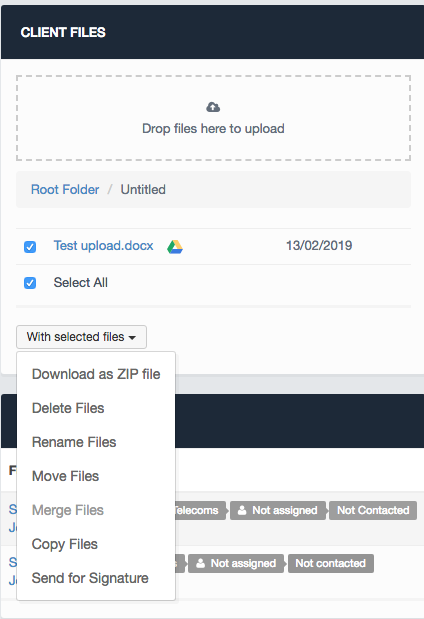
There are several actions users can perform once a file has been uploaded including selecting files to download as zip, delete, rename, move, merge, copy and send the document to Signable for esignature. To read more about Signable integration click here.
For any more assistance regarding the Client Record don't hesitate to contact helpdesk@hubsolv.com
Comments
0 comments
Article is closed for comments.