
Setting tasks within HubSolv is a useful feature to delegate amongst your users, as well as setting yourself tasks that link to your HubSolv calendar and the relevant client record.
To create a task via the Hub, select 'Create Task' and fill out all available fields and assign it to the relevant user.
You can enter a description of the task as well as give it a high priority status which will alert the assigned user to the task (see image below).
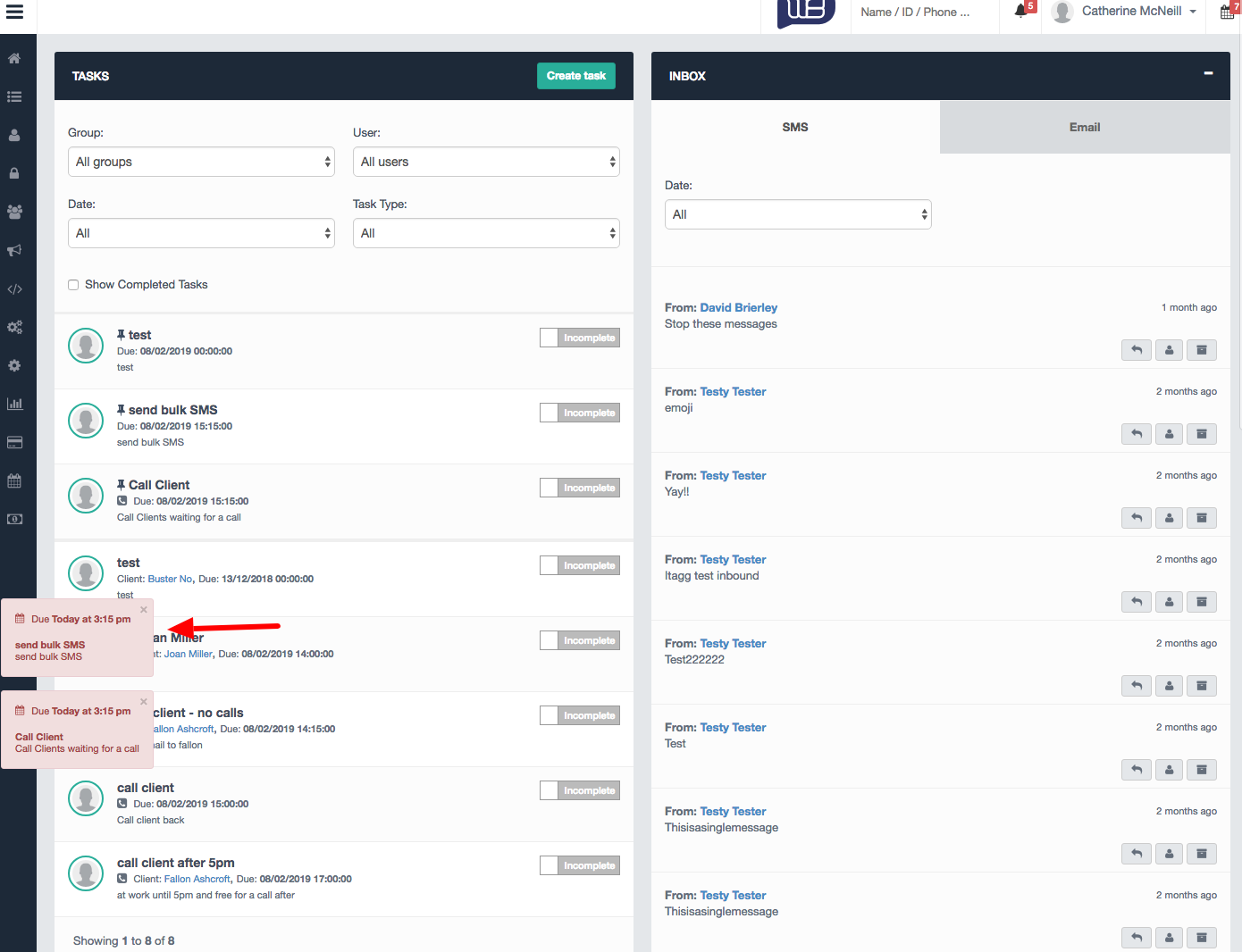
All tasks will appear within the assigned user's calendar which can be viewed in the main menu next to the user's name.
You can also request more task types by contacting helpdesk@hubsolv.com who will create the new drop down options within this field.
The Task list can be viewed by the user to manage assigned tasks and move each one to complete using the slider button provided. Super users can view all tasks across all users and can filter by Group, User, Date and Task Type.
Creating a Task Within a Client Record
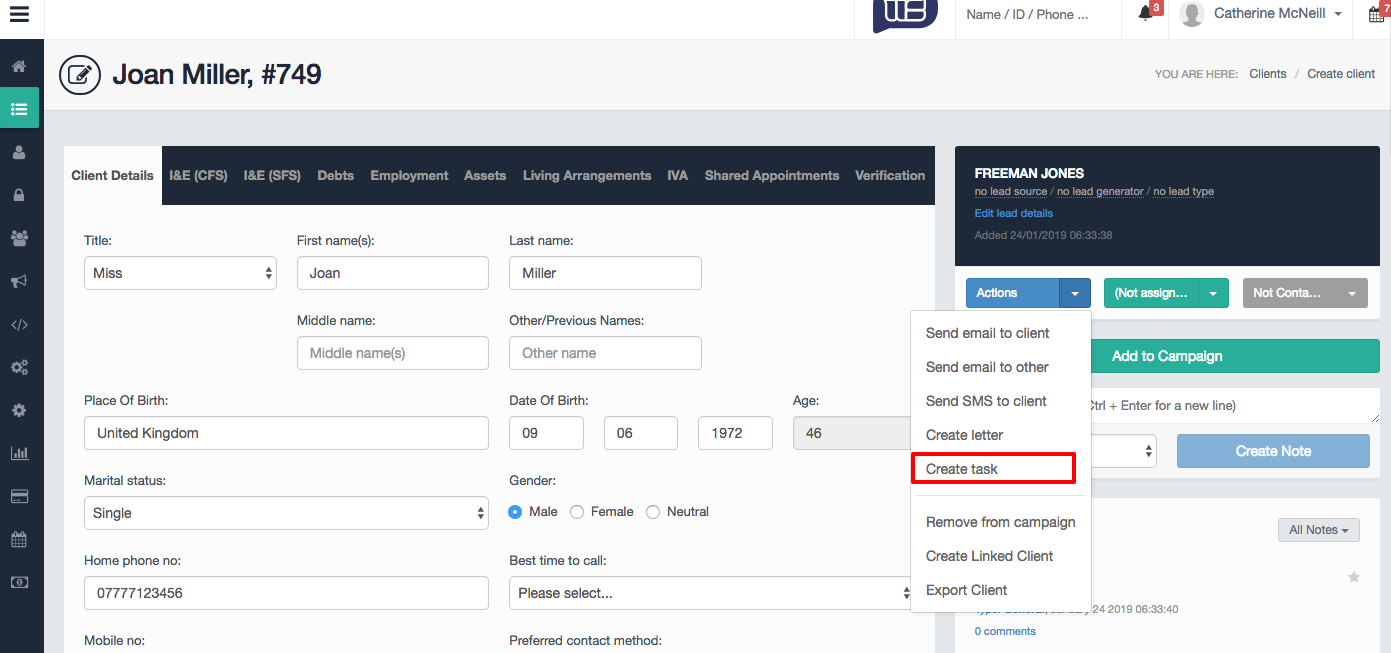
You can also create a task within a client record and follow the same process as before with the addition of the task being associated with the client record.
Triggering a Task via Campaigns
Users can create automated tasks through campaign triggers where tasks can be associated based on status, source, personal details etc. You can read more about Triggers here.
Comments
0 comments
Article is closed for comments.